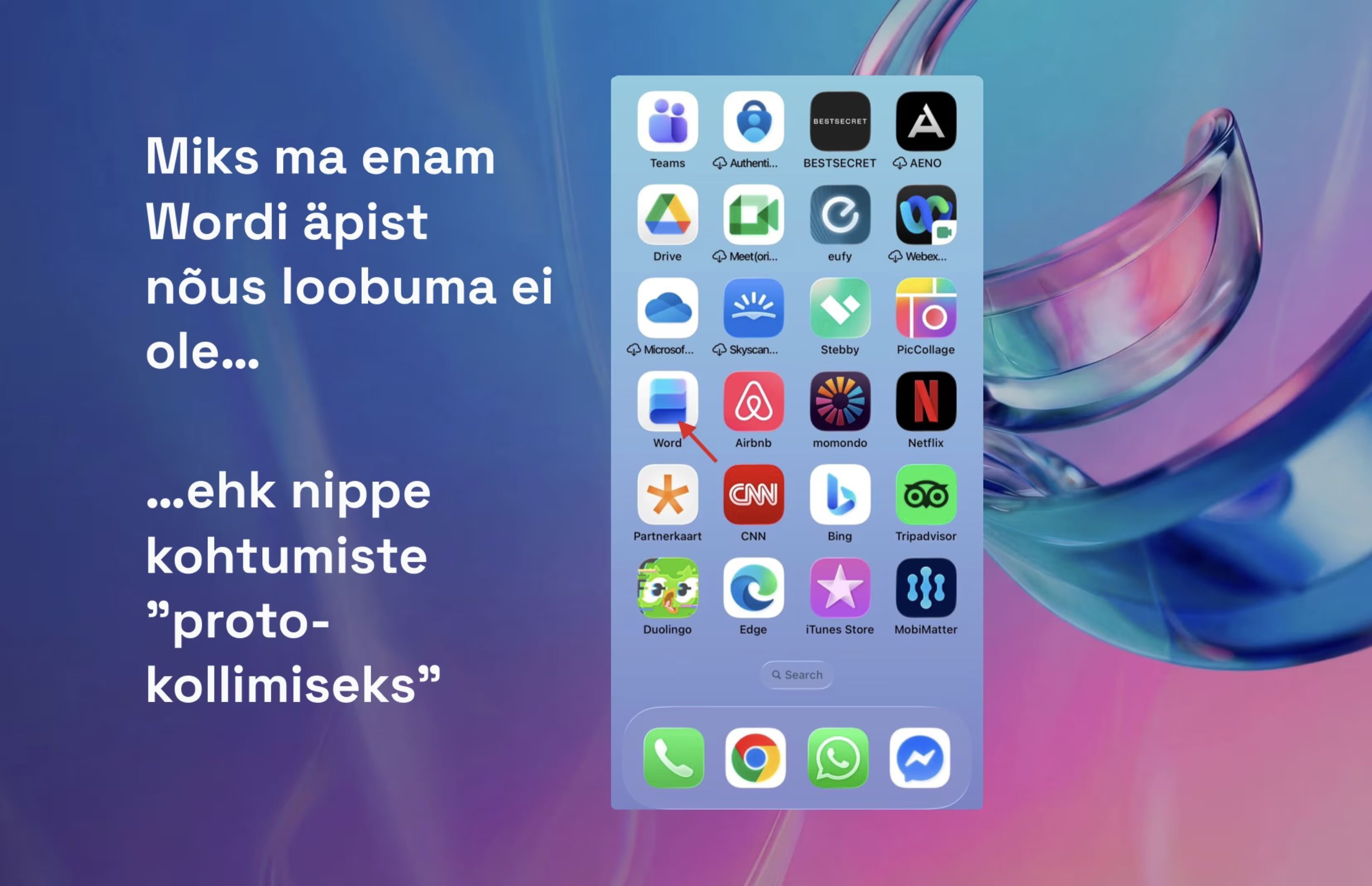
Have you ever left a meeting thinking "what did we actually agree on?" or "who was supposed to handle that?". Good news – there's a simple solution to this problem that doesn't cost an extra cent.
I discovered late last year that the Word app on my phone is incredibly useful for transcribing meetings. This year, we use it in practically every meeting – especially for brainstorming sessions or when we're agreeing on tasks that need to be done.
How does it all work and why is it so good?
What Do You Need?
Before you start, make sure you have:
-
Microsoft 365 Business account – unfortunately, personal Microsoft accounts don't support this functionality
-
Word mobile app – available for both iPhone and Android
-
AI chatbot – ChatGPT, Microsoft Copilot, or any other
Step-by-Step Guide
1. Download the Word App and Sign In
Download the Word mobile app and sign in with your Microsoft 365 Business account. This is important – the transcription feature is not available with personal Microsoft accounts.
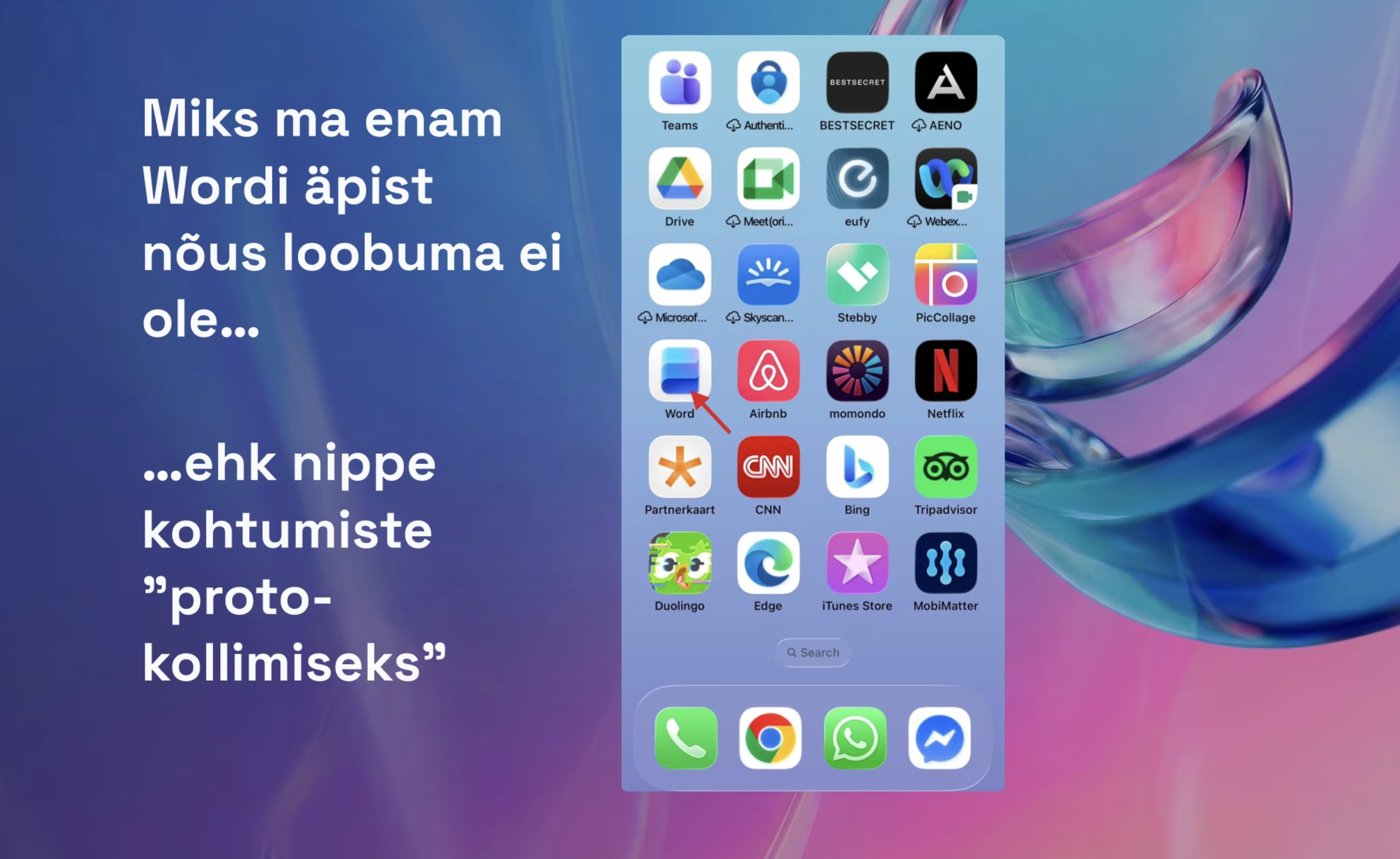
2. Open a New Document
Click the + button in the bottom menu and then open a new file (the sheet with the + sign).
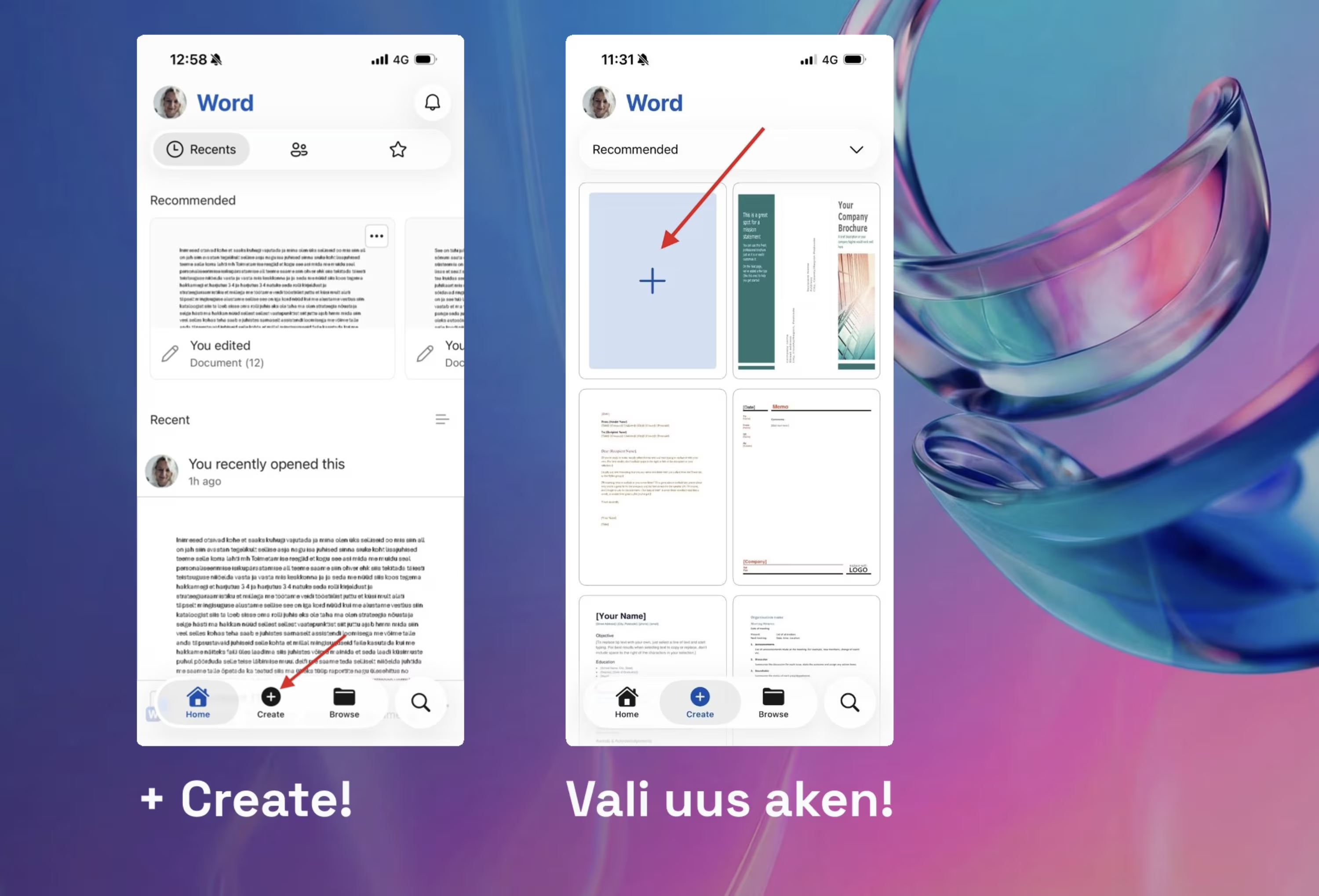
3. Start Dictation
Click the microphone button in the opened window and start speaking. This feature is called Dictate.
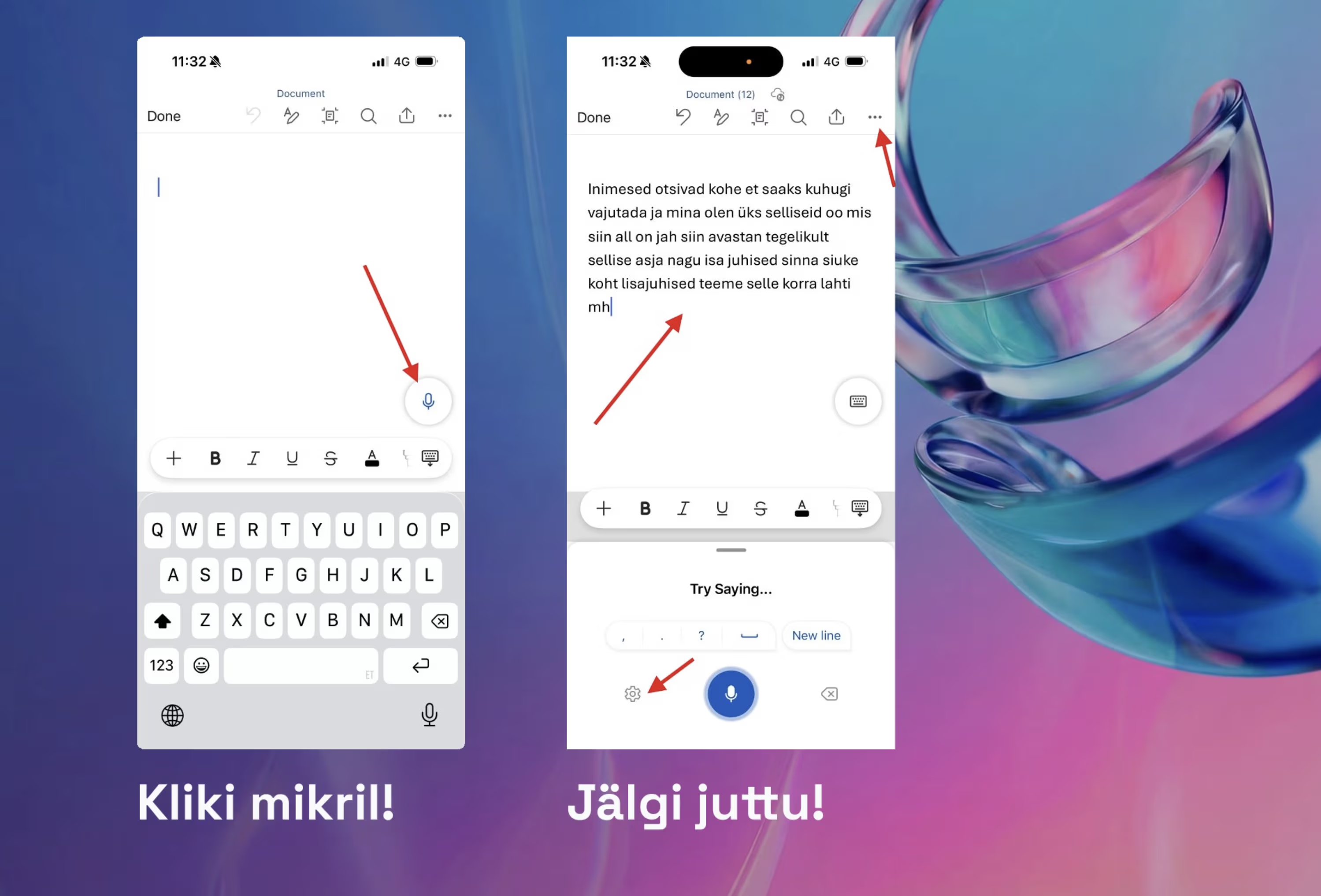
Language settings: If the app starts transcribing in the wrong language, click on settings (gear icon) and select your preferred language. Sometimes the language selection is hidden – poke around a bit. You can also access various settings from the three-dot menu, such as offline mode.
4. Save and Share
When the meeting is over, you can either send the recording to yourself or set it up to save directly to OneDrive. I use the latter option – that way I can open it directly from my computer.
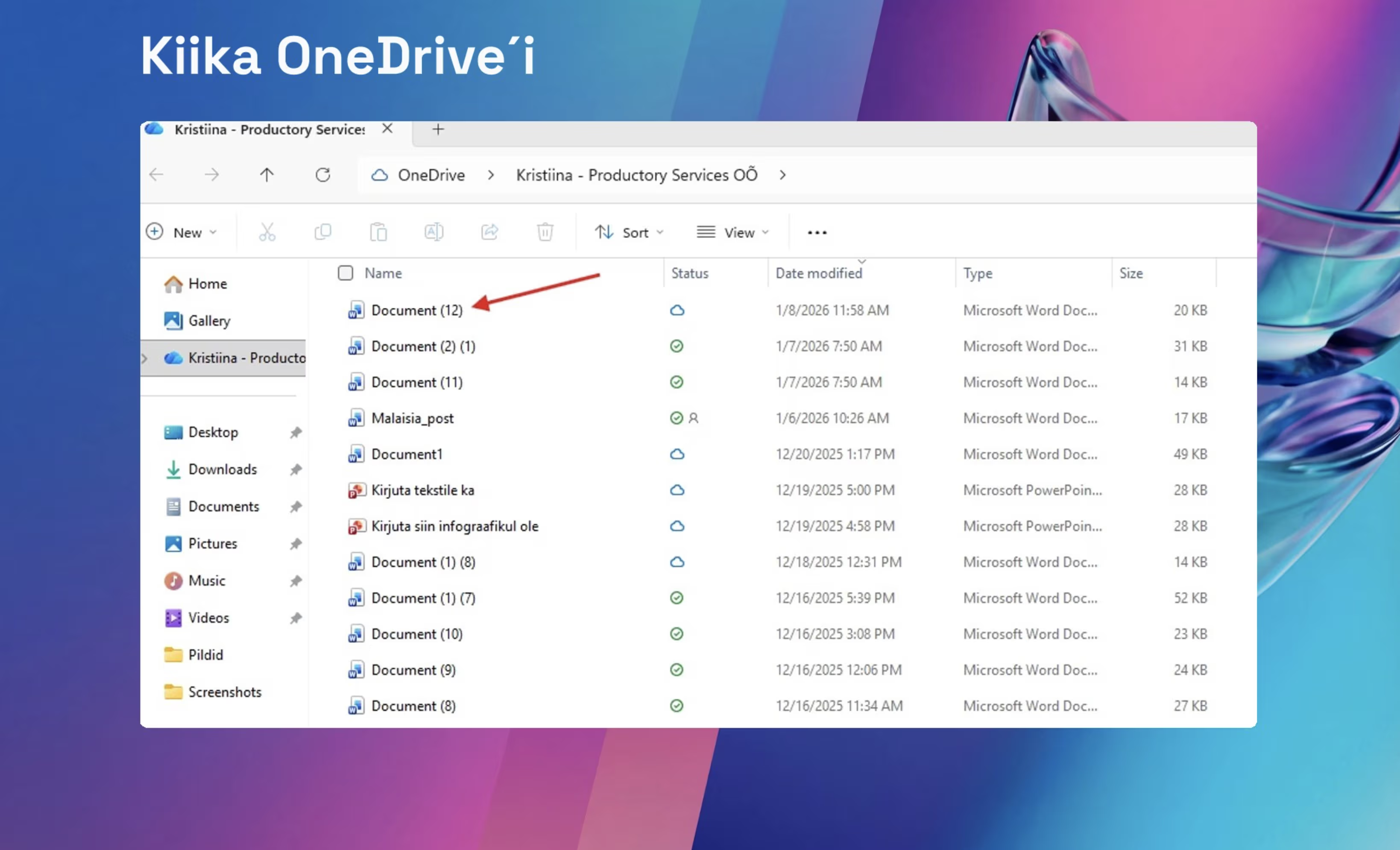
But the Text Looks Terrible?
Yes, the transcription is quite rough and messy – but don't let that discourage you! AI chatbots like ChatGPT and Copilot don't mind the mess and can still extract the key information.
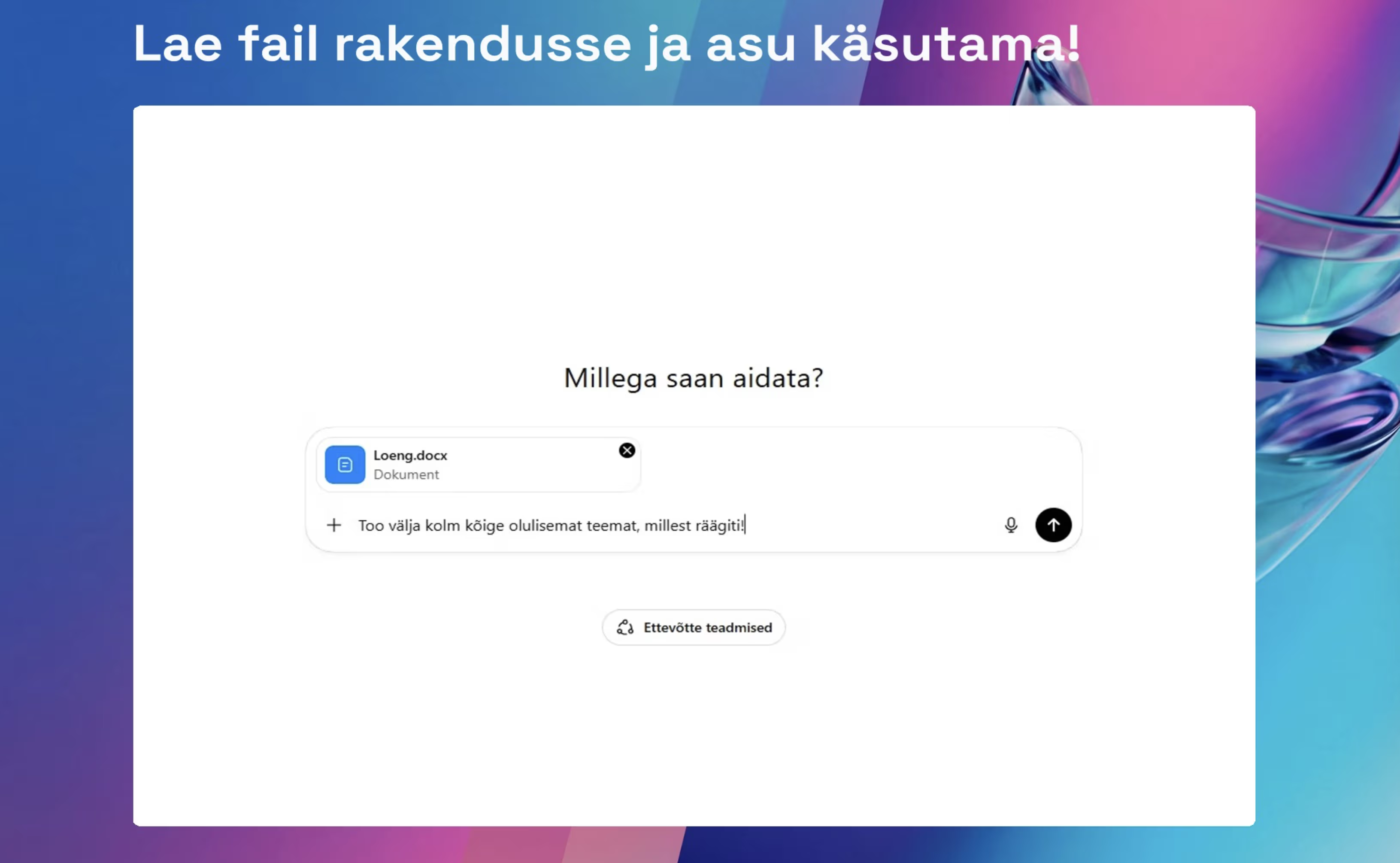
What You Can Do with AI:
-
Summary – "Create a brief summary of this meeting"
-
Minutes – "Prepare formal meeting minutes based on this conversation"
-
Ask questions – "What decisions did we make regarding the marketing plan?"
-
Action items – "List all the tasks we committed to completing"
As you can see, a pretty decent summary emerges from quite messy text.
Bonus Tip: ChatGPT Projects
For larger collaborative projects, I've created a "Project" in ChatGPT and uploaded these transcriptions there. It's an amazing assistant!
This is useful for:
-
Recalling agreements – "What did we discuss about marketing in the last meeting?"
-
Creating proposals – all project context is already there
-
Making plans – AI already knows the full background
Important Notes
45-minute limit: Word "records" continuously for about 45 minutes, then it stops. So it's worth checking occasionally that it's still running. For longer meetings, take a break and restart.
Ask for permission! Always ask for permission to record at the start of meetings. Otherwise, it's illegal surveillance! Place your phone in the center of the table or near the key speakers.
Why Is This So Great?
For people with poor memory like Jarmo, this has been a lifesaver (okay, dignity-saver). Using this is mandatory for him in our company.
But seriously – if you've ever left a meeting thinking "what did we actually agree on?", this solution is for you. No more scribbling on notepads, no more "I'll send the summary tomorrow" promises that get forgotten.
Just record, upload to AI, and let it do the work.
Prompting Tips
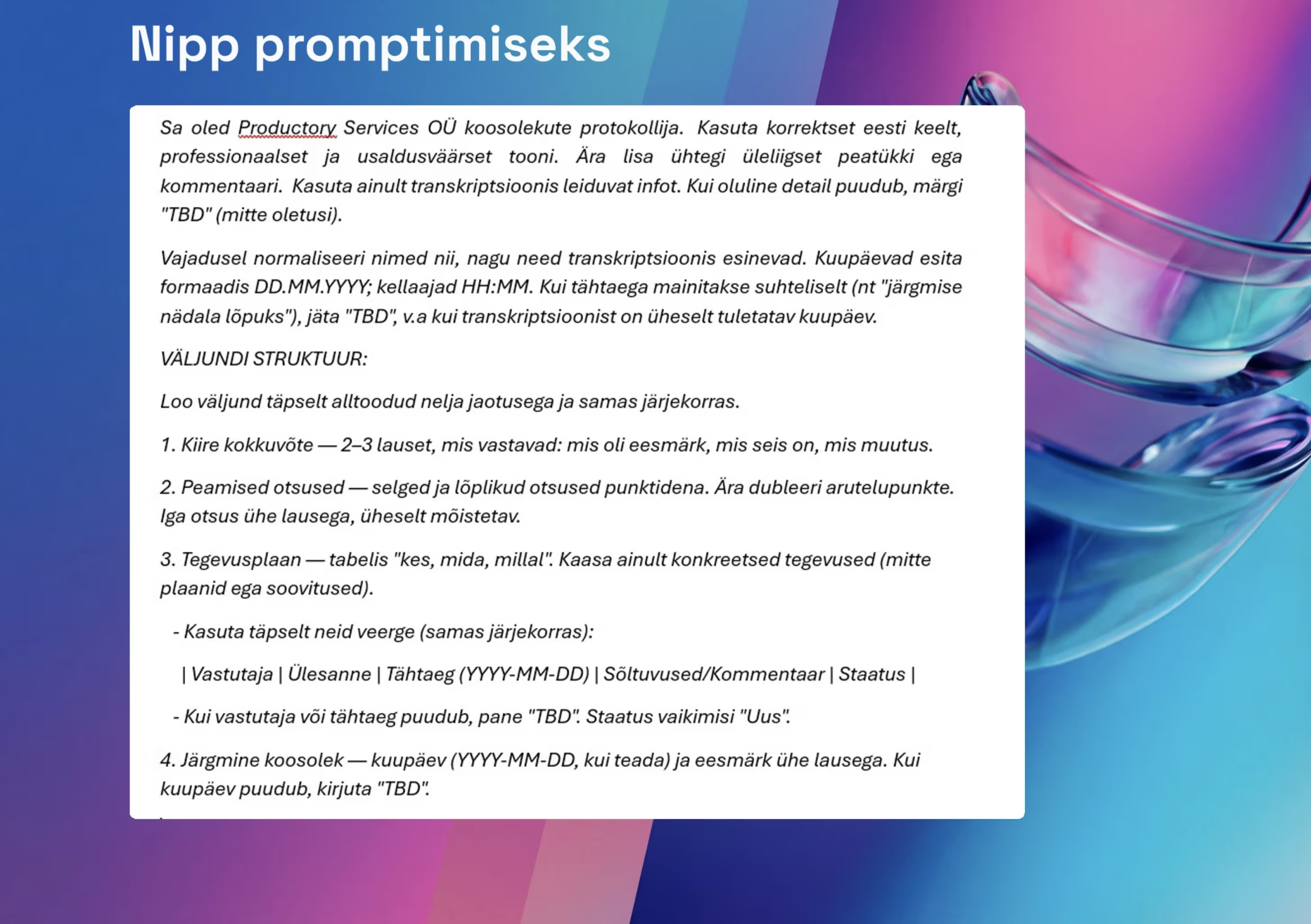
If you want AI to produce proper meeting minutes, it's worth giving it more detailed instructions. Here's an example prompt that we use:
You are a meeting minutes writer. Use correct English, a professional and trustworthy tone. Don't add any unnecessary sections or comments. Use only information found in the transcription. If an important detail is missing, mark it as "TBD" (no guessing).

Normalize names as they appear in the transcription. Present dates in YYYY-MM-DD format; times in HH:MM. If a deadline is mentioned relatively (e.g., "by the end of next week"), leave it as "TBD" unless the date can be clearly derived from the transcription.

OUTPUT STRUCTURE:

Create output with exactly these four sections in this order.

1. Quick Summary — 2–3 sentences answering: what was the goal, what's the status, what changed.

2. Key Decisions — clear and final decisions as bullet points. Don't duplicate discussion points. Each decision in one sentence, unambiguous.

3. Action Plan — in a table with "who, what, when". Include only concrete tasks (not plans or suggestions).
   - Use exactly these columns (in this order):
     | Owner | Task | Deadline (YYYY-MM-DD) | Dependencies/Comments | Status |
   - If owner or deadline is missing, put "TBD". Status defaults to "New".

4. Next Meeting — date (YYYY-MM-DD, if known) and purpose in one sentence. If date is unknown, write "TBD".
Of course, you can customize this to your needs – for example, change the company name or add specific output columns.
In Summary
The whole process is actually very simple: download the Word app, sign in with your Microsoft 365 Business account, and open a new document. At the start of the meeting, tap the microphone button and let the app record the conversation (remember the 45-minute limit). After the meeting, upload the transcription to AI and ask it to create a summary, minutes, or action plan – whatever you need.
Happy experimenting!