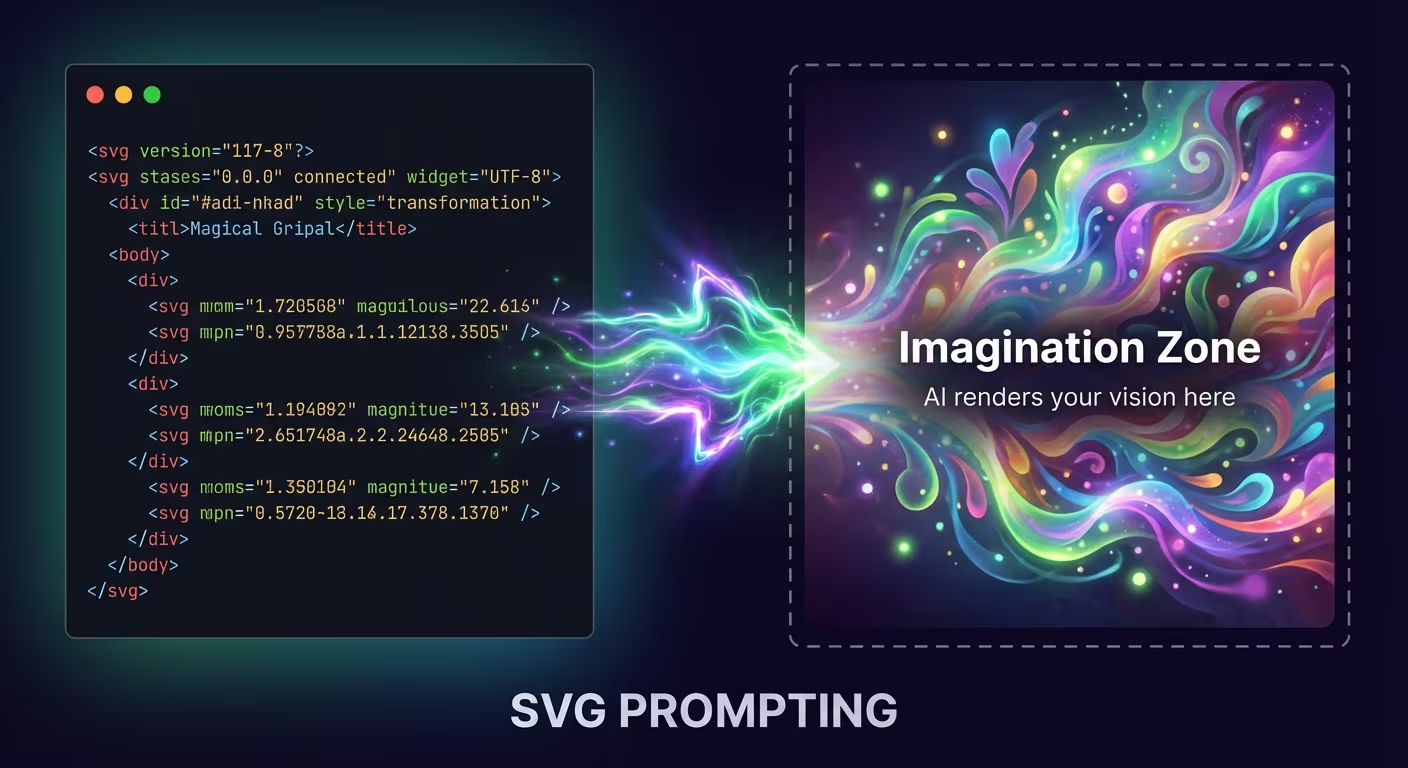
I stumbled upon something interesting – half by accident, I figured out how the world's best image models might actually work under the hood.
One evening I was working on RiteMark app development and wanted to automate image generation. The goal was to teach Claude Code how to systematically create images.
I had already learned that automation experts use so-called JSON prompts. This means the image prompt is divided into different structural components: one component describes lighting, another the background, a third the composition, and so on.
The Problem: Precise Text Positioning
I became curious whether I could more precisely control where text gets placed on an image. I didn't want text floating randomly somewhere – I wanted it exactly in the bottom left corner, inside a blue box.
No matter how I prompted, that box always shifted slightly. The box appeared and the text went inside it, but everything was a bit imprecise. I tried specifying exact coordinates in JSON, but every image still came out different.
Then a thought struck me: why am I trying with JSON when I could try prompting in the language of image formats themselves?
One widely used vector graphics format is SVG. It's an XML-like format that machines can directly read and understand. I thought, let's try – what happens if I give Nano Banana SVG code instead of JSON?
First Tests and Surprises
That's when the discoveries started happening.
I created a simple image in Figma: two circles, one red and one blue. I copied the SVG code as text into Nano Banana. Voilà – two circles appeared on screen very clearly, one blue and one red. Exactly as written in the SVG.
I modified the code and made one circle slightly smaller, and Nano Banana followed the change precisely.
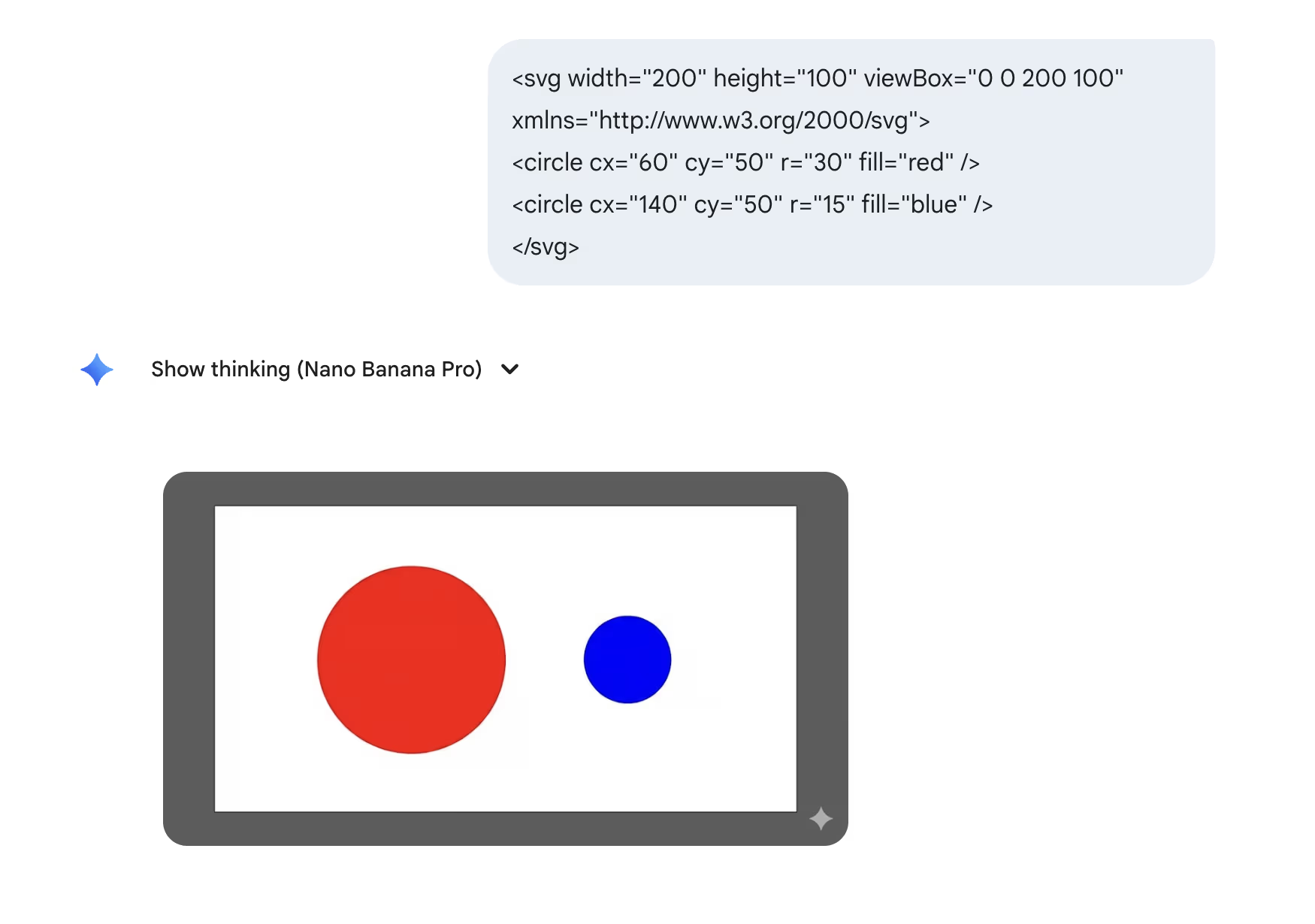
A simple SVG with two circles gave exactly the expected result.
The Secret Revealed
Something started clicking here. Nano Banana had already stood out for its extraordinarily precise image generation – too precise to be considered a regular diffusion model.
It seems that Nano Banana runs a multi-stage system behind the scenes. Based on our prompt, it first programs the design, layout, and text in an SVG file. Then the SVG is rendered to a base image. Only after that does it pass through the diffusion model.
This multi-stage workflow explains why Nano Banana can deliver extremely precise text and high quality – the system doesn't try to "hallucinate" text like regular image models do, but renders it properly before diffusion.
SVG Prompt Examples
Here are some examples of SVG prompts I tested and their results.
Drawing UI Elements
The first serious test was creating a UI mockup:
<svg width="600" height="750" viewBox="0 0 600 750">
  <rect width="600" height="750" fill="#0B0B0C"/>
  <rect x="36" y="36" width="528" height="678" rx="28"
        fill="none" stroke="#2A2A2E" stroke-width="2"/>
  <text x="60" y="110" fill="#F2F2F2" font-size="44">
    Header Title
  </text>
  <text x="60" y="160" fill="#A9ABB3" font-size="22">
    Subtitle line goes here
  </text>
  <rect x="60" y="620" width="480" height="74" rx="18" fill="#F2F2F2"/>
  <text x="300" y="668" text-anchor="middle" fill="#0B0B0C" font-size="26">
    Call to Action
  </text>
</svg>
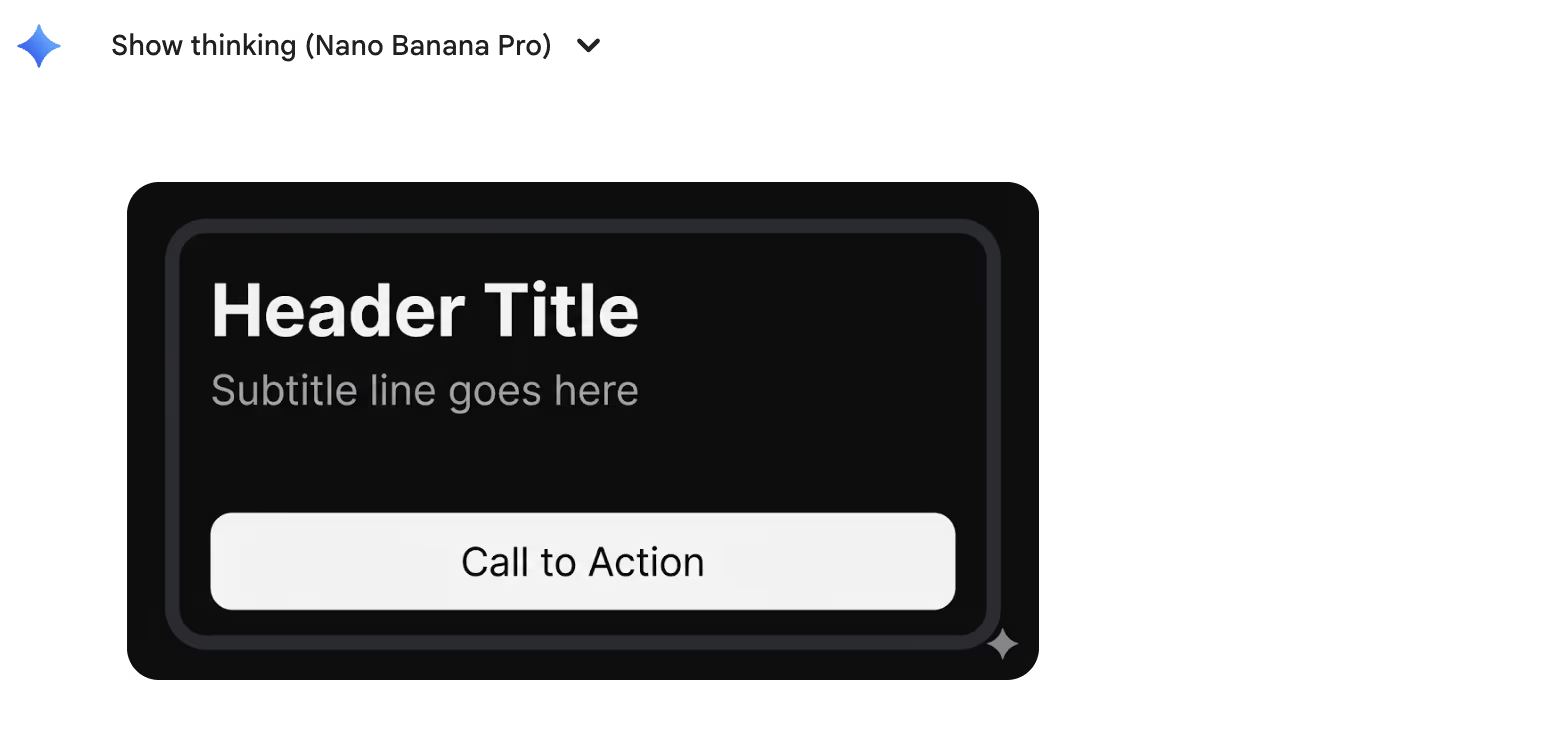
Nano Banana followed the UI layout precisely while adding its own style.
Text on a Curve
The next test was more complex – text following a curve:
<svg width="700" height="300" viewBox="0 0 700 300">
  <rect width="700" height="300" fill="#0B0B0C"/>
  <path id="curve" d="M50 190 C180 70, 520 70, 650 190"
        fill="none" stroke="#2A2A2E" stroke-width="2"/>
  <text font-size="34" fill="#F2F2F2">
    <textPath href="#curve" startOffset="50%" text-anchor="middle">
      TEXT ON A CURVE
    </textPath>
  </text>
</svg>
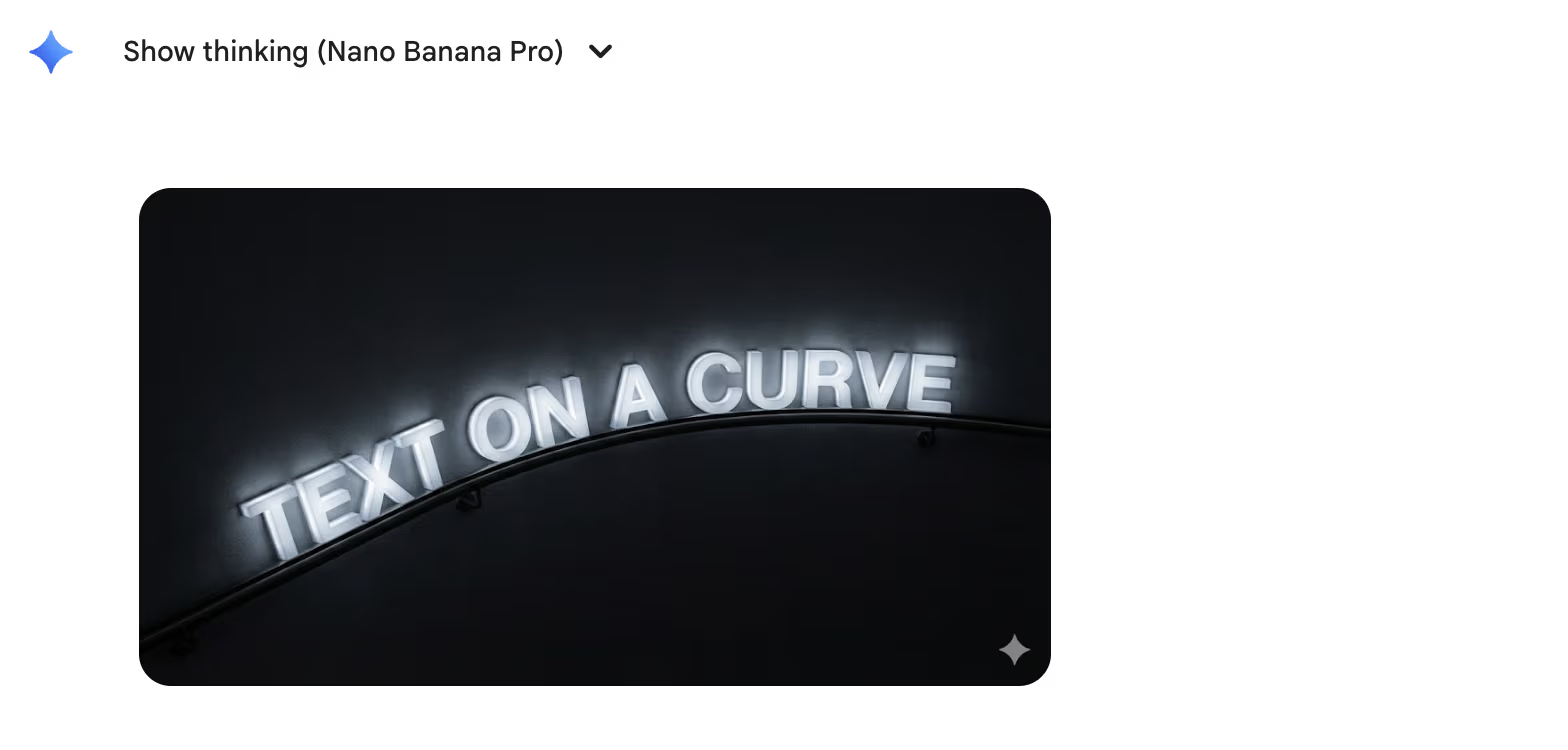
Even textPath works – the text follows the specified curve exactly.
Complex Composition
The final test was the most complex – patterns, clipPath, multiple texts and curves together:
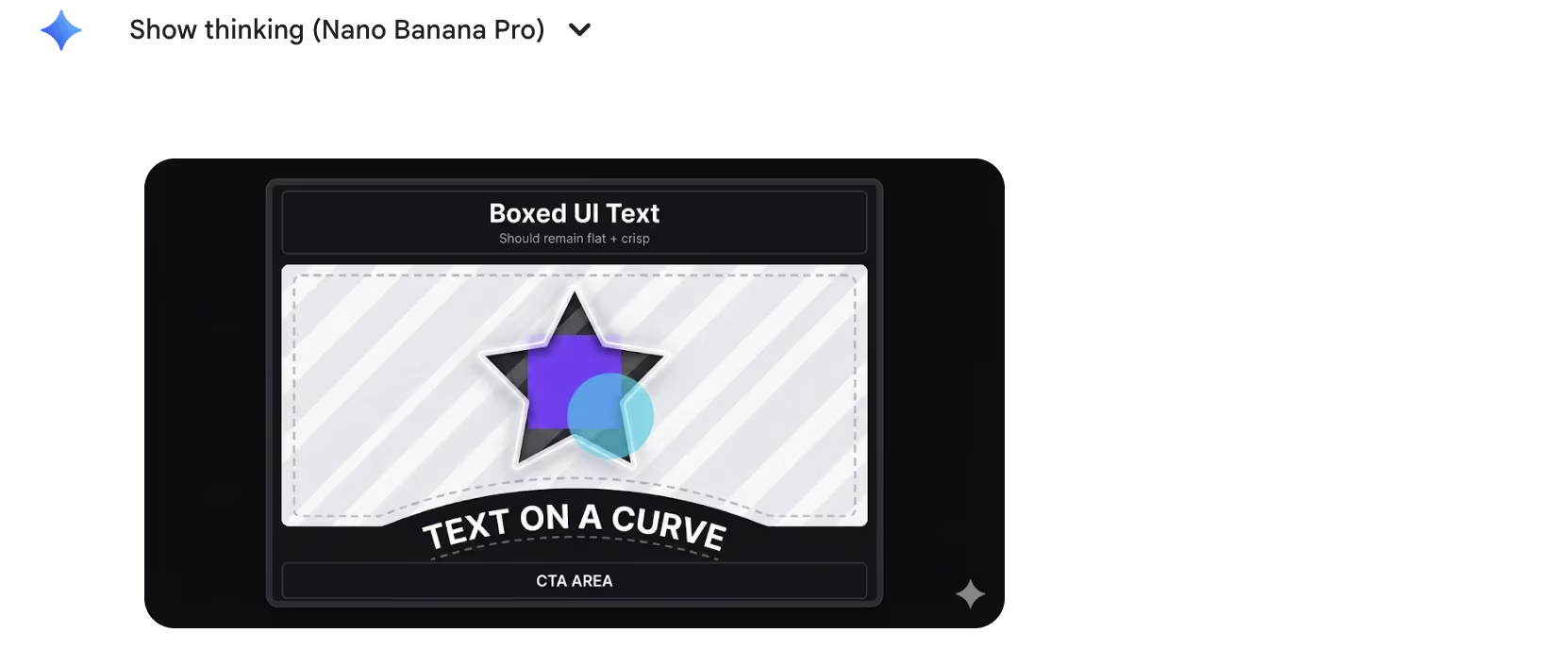
Star-shaped mask, diagonal pattern, and multiple text elements – everything works.
What Does This Mean in Practice?
This means we're reaching an entirely new level of control in image generation automation. Instead of describing in words "put the text in the bottom left corner," you can provide exact coordinates and dimensions. The machine no longer needs to interpret – it simply follows the blueprint.
Even more exciting: we can create SVG templates and add comments inside the SVG that guide Nano Banana. For example, you can mark exactly where a "raster image" should appear – clearly separating controllable vector areas from controllable image areas. Text stays sharp, design stays precise, but beautiful generated graphics still appear in the desired places.
Give it a try and let me know how it goes!
FAQ
What is Nano Banana? Nano Banana is the nickname the AI community uses for Google's Gemini image generator. It refers to Gemini 3.0's built-in image generation capability.
Does SVG prompting only work with Nano Banana? Currently this technique is best tested with Gemini models. Results may vary with other image models since they may not use the same multi-stage architecture.
Do I need to know how to write SVG? No. You can use Figma, Illustrator, or any other vector graphics application and export SVG code from there. Even AI can generate SVG code for you.
Why is SVG prompting better than regular text prompts? SVG gives pixel-perfect control over element position, size, and style. With text prompts you can say "text on the bottom left," but you can't guarantee the exact position. With SVG you can say "text at coordinates x=60, y=620."
Does this work with photorealistic images too? Yes, but slightly differently. SVG defines the composition and text, the diffusion model adds realism. So you can get, for example, an ad with precisely positioned text where the background is photorealistic.