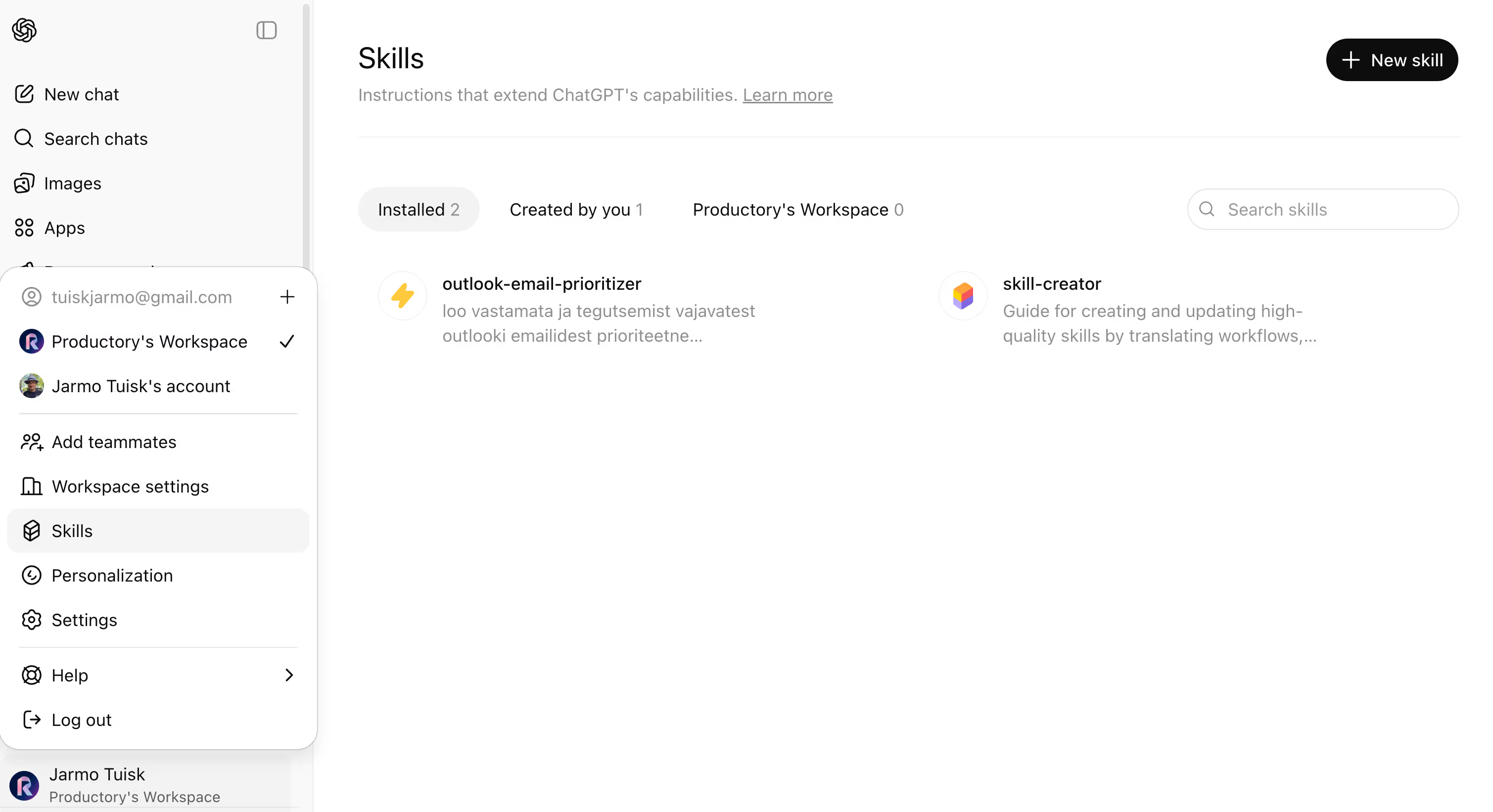
You have probably noticed a new item in the ChatGPT left sidebar: Skills. If you are not sure what to do with it, you are not alone. In this article, we break down what Skills actually are, how they differ from GPTs and Projects, and how to set up your first skill step by step.
Where did this come from?
OpenAI has been developing Skills for a while. Internally, the project reportedly carried the codename Hazelnut. The core idea is simple: instead of building a full Custom GPT for every task, with a personality, instructions, and files, you can now create compact reusable "skills" that ChatGPT applies automatically when relevant.
Skills are user-defined capabilities that ChatGPT can apply to complete tasks. A skill is more than a prompt. It can package instructions, scripts, background documents, templates, and other supporting files. A typical structure looks like this:
OpenAI defines it in the official Help Center this way: "Skills are reusable, shareable workflows that tell ChatGPT exactly how to do a specific task."
my-skill/
├── SKILL.md        # Required: instructions + metadata
├── scripts/        # Optional: executable code
├── references/     # Optional: background documents
└── assets/         # Optional: templates and resources
If you want the official format details and examples, see OpenAI documentation: Agent Skills (Codex docs).
You do not need to say "use this skill" every time. ChatGPT can usually decide when to apply it, because the skill contains context about when it is useful.
If this sounds familiar, there is a reason. Claude users have known this concept for a long time. Anthropic also uses "skills", and they have been part of Claude Code and Cowork mode workflows. Feature patterns across major AI platforms are increasingly similar: they often appear in one ecosystem first, then spread to others over the next months.
Assistant, Project, and Skill: what is the difference?
This is where most confusion happens. You now have three things that can all "help you," but each has a different role.
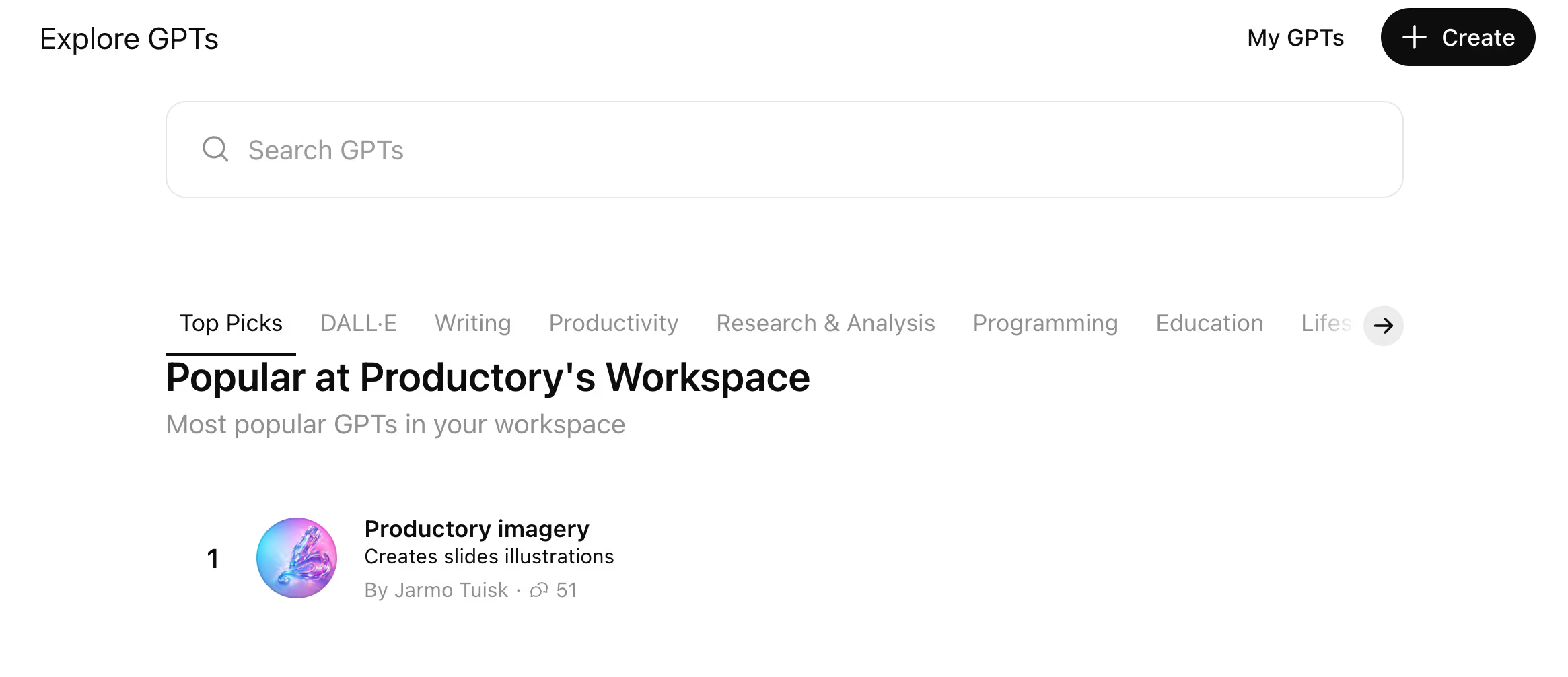
Assistant (Custom GPT) is who you talk to. It is a specialized assistant for recurring needs, with a defined tone, role, and knowledge scope. If you create a "Marketing Assistant" GPT, it consistently operates in that domain, but each new chat starts fresh. You open an assistant to talk with that assistant. Custom GPTs are ideal for repeatable tasks where style and response format need to stay consistent, and they can be shared with a team or publicly via the GPT Store.
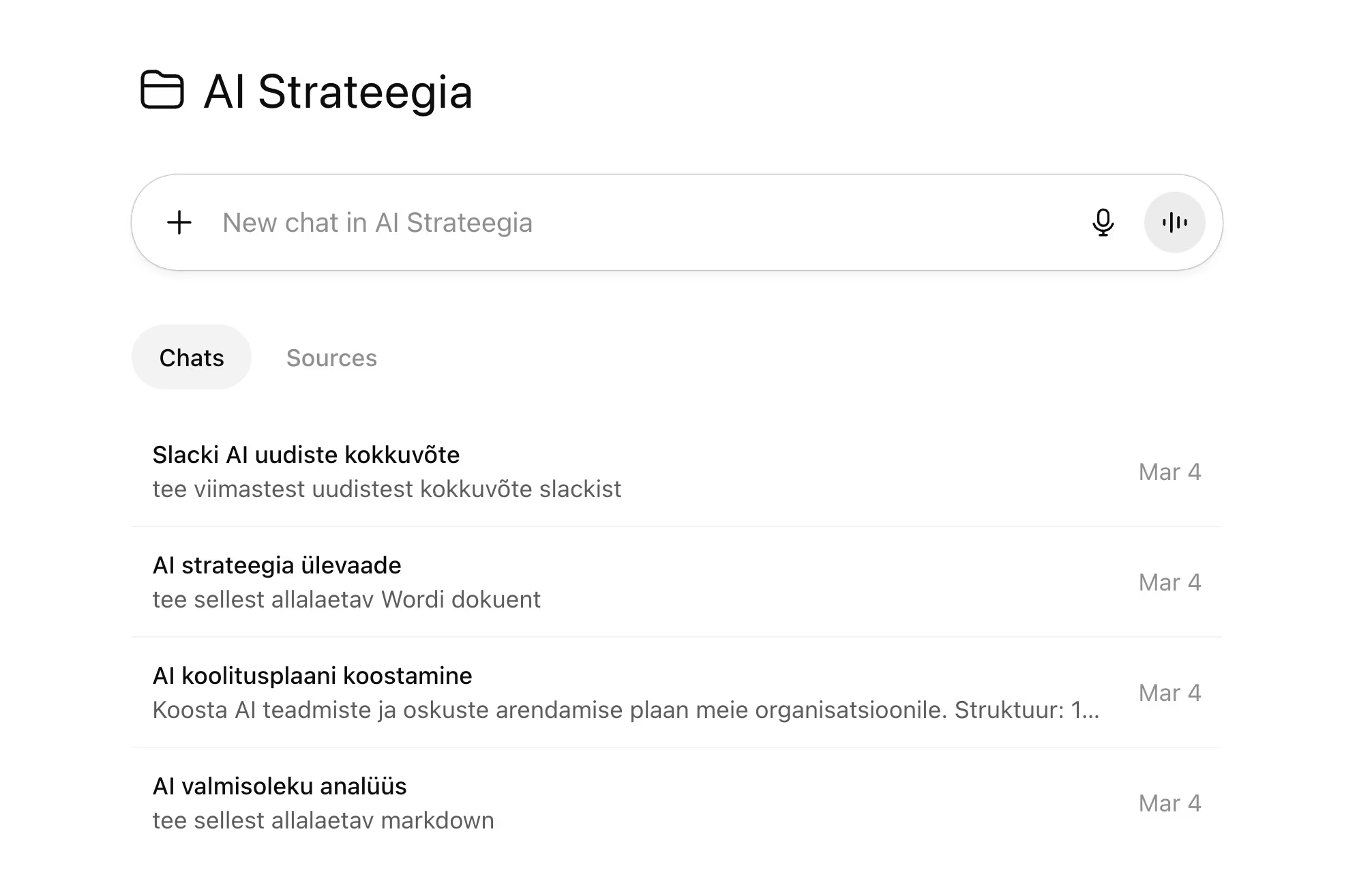
Project is where you work. It is a long-lived workspace with shared context, useful for ongoing topics or clients. Think of it as a work folder that bundles conversations, files, and instructions. Projects keep context across multiple chats and are ideal for evolving work such as research, book writing, or business planning. You open a project and do work inside that project.
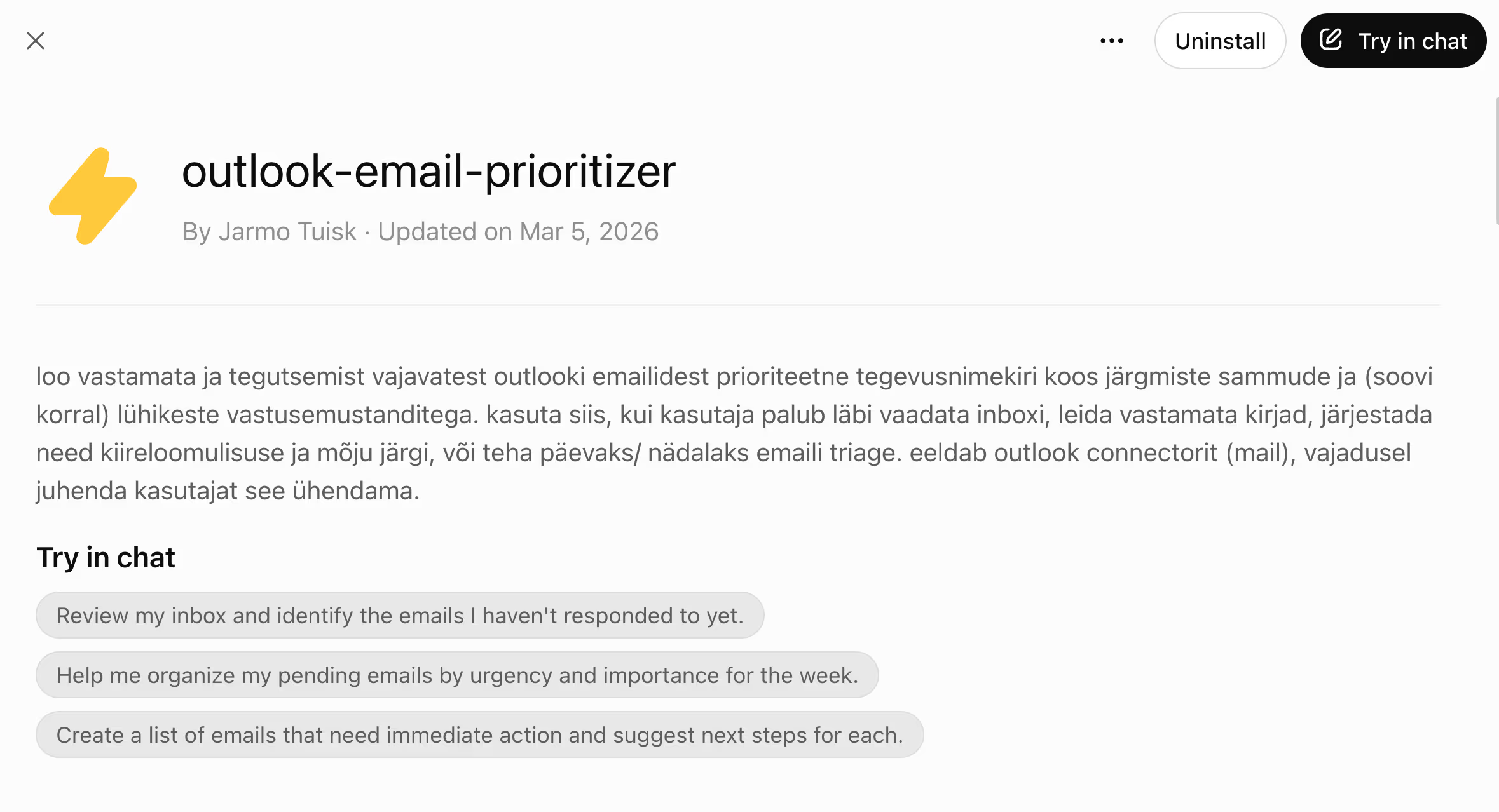
Skill is what solves a specific task. It is a focused capability (instructions + scripts) that ChatGPT can call when needed. Think of it as a tool in a toolbox. A skill like "Email Priority Classification" does not "chat like an expert" or remember prior conversations, it simply knows how to perform that task and activates when ChatGPT detects that it is relevant.
In one sentence: a GPT is the expert you talk to, a Project is the workspace where work happens, and a Skill is the tool used to execute a specific job.
How to create your first skill
There are several ways to create a skill, and the process is surprisingly straightforward. Open the main ChatGPT Business menu, go to "Skills", and choose one of these three paths:
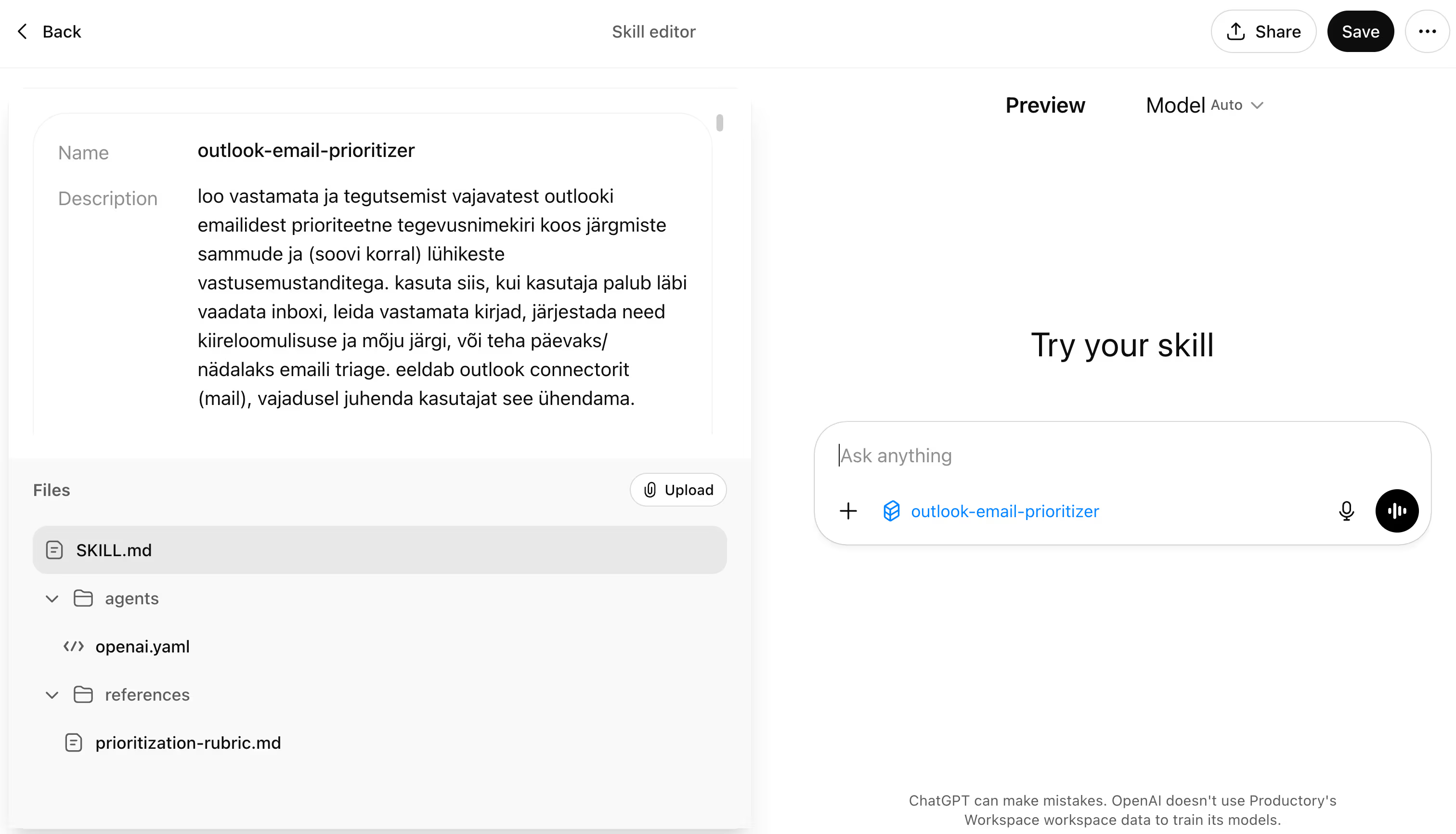
Option 1: describe it conversationally. Click "New Skill" and explain in plain language what you want. ChatGPT drafts the skill for you, asks follow-up questions if needed, and can offer installation directly in chat. Example: "Create a skill that helps prioritize my daily emails by importance and urgency."
Option 2: write it manually in the editor. Choose "Create a Skill" and write instructions yourself. You can add examples, scripts, and activation criteria. This gives you more control over structure and behavior.
Option 3: upload an existing skill. If you already have a skill file (for example from a teammate), upload it directly from the Skills page using "Upload from your computer."
Advanced users often rely on AI development tools like Codex CLI or Claude Code to build skills. These tools make it easy to assemble the full skill structure (SKILL.md, scripts, references) in a development workflow and then import it into ChatGPT.
Once installed, you will see skills categorized in the Skills page, such as "Installed", "Created by you", and workspace-level skills.
Practical example: email prioritization skill
Assume you receive 50+ emails per day and want ChatGPT to help triage them automatically.
Create a skill with logic like this:
-
Read email content and sender context
-
Score urgency on a 1-5 scale (deadline, tone, topic)
-
Categorize: "Reply now", "Reply today", "This week", "FYI"
-
Flag messages that contain a decision request or explicit task for you
When this skill is installed and you paste emails into ChatGPT (or connect a mail source), ChatGPT can apply the skill automatically without you explicitly asking for it each time.
When should you use a skill vs. a GPT?
Simple rule of thumb: if you need advice from a specialist with a consistent tone and domain focus, use a Custom GPT.
If you need to get a concrete task done (sort, analyze, format, prioritize), build a Skill.
A GPT is the expert you call. A Skill is the automation that runs in the background.
And a Project is the workspace where both can work together.
Who can use Skills?
Skills are currently available for ChatGPT Plus, Team, Business, and Enterprise users. In Enterprise and Edu plans, they may be disabled by default and managed by administrators. Skills are not currently available in the free ChatGPT plan.
What does this mean in the bigger picture?
Skills are another signal that ChatGPT is evolving from "just a chatbot" toward a configurable work platform. Instead of only asking questions, teams can standardize repeatable workflows, automate task execution, and share reusable capabilities.
For companies, this means ChatGPT can become more useful as a daily operational teammate. For teams already familiar with similar concepts in other ecosystems, the learning curve is short.
FAQ
What is a ChatGPT Skill?
A Skill is a reusable workflow that teaches ChatGPT how to execute a specific task. It can include instructions, examples, and code.
How is it different from a Custom GPT?
A Custom GPT is a full assistant with a specific persona and knowledge setup. A Skill is a focused capability that can be applied automatically when needed.
Does a Skill activate automatically?
Yes. Once installed, ChatGPT can detect when to apply it based on the task context.
Can we share skills in a team?
Yes. Team, Business, and Enterprise plans support workspace sharing and visibility of created skills.
Which plans include Skills?
Skills are available on ChatGPT Plus, Team, Business, and Enterprise plans. They are not currently available on the free plan.
Is a Skill the same as a Claude skill?
The concept is very similar. In both cases, skills are modular, reusable, and context-triggered.
Can ChatGPT use multiple skills at once?
Yes. It can combine multiple relevant skills in a single task when needed.